
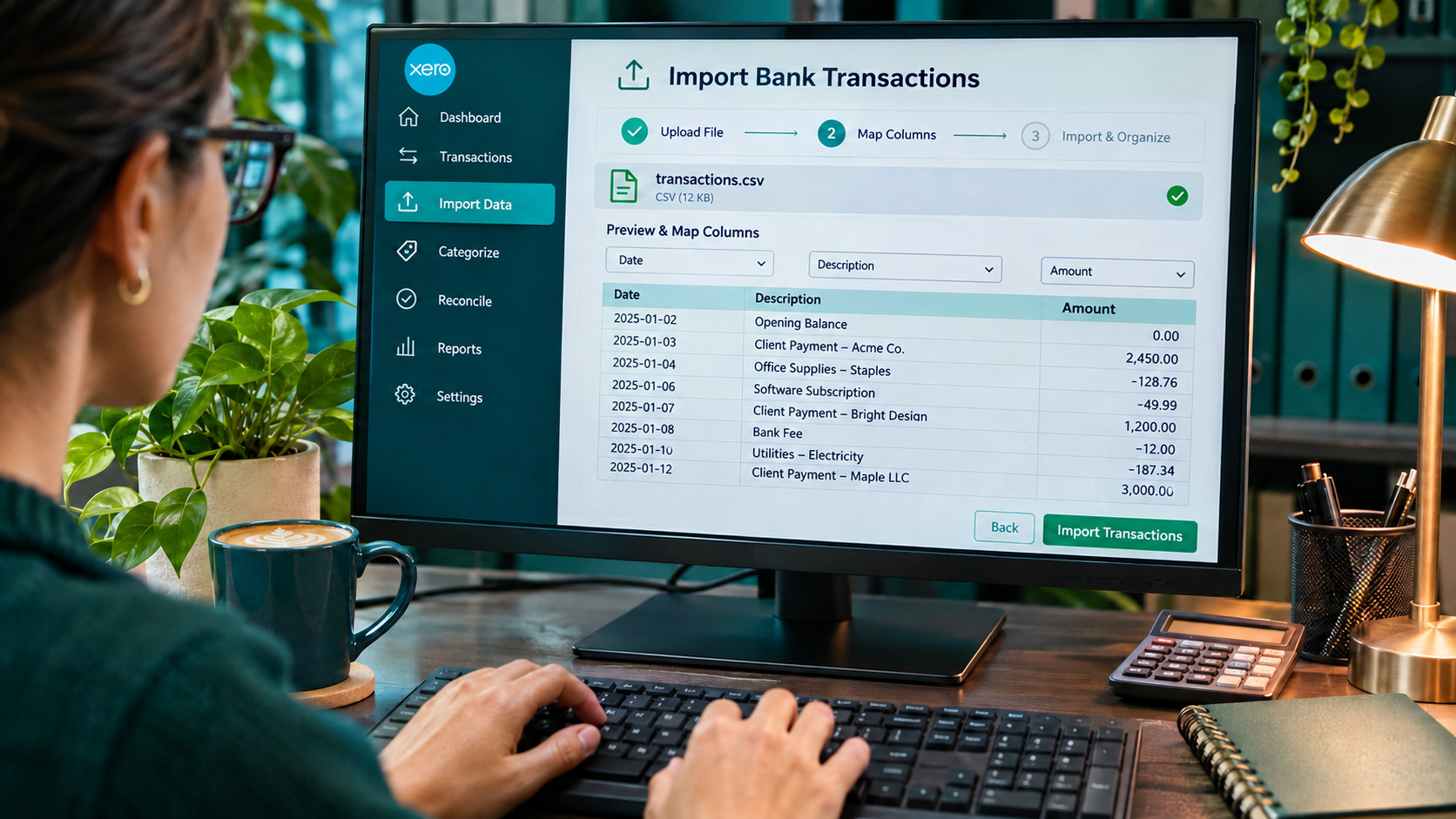
Importing a bank statement into Xero should be a quick job. But in reality, the file is often the problem. Many banks only provide statements as PDFs, and Xero does not accept PDF files directly. It needs a CSV or similar file with the right columns, date format and amount signs.
This guide covers the requirements for the Xero bank statement CSV format, the common errors and how to resolve them. Prefer to skip formatting? Try this ready-to-use bank statement to Xero template and get an import-ready file automatically.
What Is the Correct Bank Statement CSV Format for Xero?
Xero supports bank statement imports in CSV format, but the file must follow a structure that Xero can recognize. At a minimum, each transaction needs a date and an amount, or equivalent debit and credit fields. You can also include additional details such as the payee, description, and reference to make transactions easier to identify.
A typical bank statement CSV file for Xero may use the following column structure:
| Date | Amount | Payee | Description | Reference |
|---|---|---|---|---|
| 2026-01-05 | 150.00 | ABC Store | Office supplies | INV-001 |
| 2026-01-06 | -75.00 | XYZ Services | Software subscription | INV-002 |
| 2026-01-07 | 500.00 | Client A | Customer payment | INV-003 |
Depending on your bank's statement format, transactions may also be provided in separate debit and credit columns instead of a single amount column. Xero supports different import layouts, so you may need to map the available columns to the corresponding fields during the import process.
Common Xero Bank Statement CSV Errors and How to Fix Them
Even if your bank statement is saved as a CSV file, Xero may still encounter issues during import. Here are some common problems and how to fix them.
1. Hidden Characters or Extra Spaces
CSV files may contain hidden characters, non-printable symbols, or extra spaces that interfere with how Xero reads transaction data.
How to fix it: Remove unnecessary spaces and unusual characters. Try copying the data into a new spreadsheet and saving it again as a CSV file.
2. Invalid Date Format
Xero may not recognize transaction dates if they use an unsupported or inconsistent format, such as mixing DD/MM/YYYY and MM/DD/YYYY.
How to fix it: Use one consistent date format throughout the CSV file and check that all transaction dates are valid.
3. Incorrect Debit and Credit Signs
Some banks export debits and credits in separate columns, with both values shown as positive numbers. If debit values are not converted to negative amounts, outgoing payments may appear as deposits in Xero.
How to fix it: Make sure debit transactions have negative signs and credit transactions have positive signs when combining them into a single Amount column.
4. Invalid or Missing Transaction Amounts
Amount fields may contain blank values, text, currency symbols, or inconsistent decimal separators that prevent Xero from correctly reading transaction values.
How to fix it: Make sure every transaction has a valid numeric amount. Remove unnecessary currency symbols and use consistent number formatting.
5. Imported Data Appears Misaligned
A CSV file may import successfully, but transaction details can appear scattered across the wrong columns or fields due to incorrect formatting or column mapping.
How to fix it: Check the CSV structure and column mapping before importing. Make sure each field, such as Date, Amount, Payee, and Description, is placed under the correct column.
6. Unsupported CSV Format or Encoding
A file may have a .csv extension but still contain an unsupported structure or encoding that prevents Xero from reading it correctly.
How to fix it: Save the file in a standard CSV format and try using UTF-8 encoding, especially if special characters appear incorrectly.
How You Can Automatically Convert a PDF Bank Statement into a Xero-Ready File
AnyCheck provides an AI-powered OCR tool that automatically extracts transaction data from PDF bank statements and converts it into a structured, Xero-ready file. It works with different bank statement layouts, helping you save hours of manual data entry and formatting. Here's how you can try it yourself:
1. Upload Your PDF Bank Statement
Open AnyCheck and upload your PDF bank statement. The AI-powered OCR tool will process the document and identify its transaction data, even across different bank statement layouts.
2. Let AI Extract the Transaction Data
AnyCheck automatically extracts key details, including transaction dates, descriptions, debit amounts, credit amounts, and balances. You don't need to manually copy each transaction into a spreadsheet.
3. Review the Extracted Data
Check the extracted transactions to make sure the dates, descriptions, and amounts match your original bank statement. Make any necessary corrections before exporting.
4. Export Your Xero-Ready File
Once everything looks correct, export the data in CSV format. Your file is now ready to be uploaded to Xero for bank statement import.
Frequently Asked Questions About Xero Bank Statement CSV
1. What CSV format does Xero accept for bank statements?
Xero accepts bank statement files in CSV format, provided they contain the required transaction details, such as dates and amounts. The columns must also be mapped correctly during import.
2. Can I import a PDF bank statement directly into Xero?
No. Xero does not support direct PDF bank statement imports. You need to convert the PDF into a supported format, such as CSV, before importing it.
3. How do I convert a bank statement PDF to CSV for Xero?
You can use an OCR-based conversion tool to extract transaction data from your PDF bank statement and turn it into a structured CSV file. Review the extracted data before importing it into Xero.
4. Why are my bank statement transactions showing as deposits instead of withdrawals?
This may happen when debit transactions are not marked with negative values. If your bank exports debit and credit amounts as separate positive values, make sure debits are converted to negative amounts when using a single Amount column.
5. Can I edit a bank statement CSV file before importing it into Xero?
Yes. You can open the CSV file in spreadsheet software such as Microsoft Excel or Google Sheets to correct dates, amounts, descriptions, and column formatting before importing it.
6. What should I do if Xero cannot read my CSV file?
Check that the file uses a supported CSV structure, has consistent date and number formats, and contains valid transaction values. You can also try saving it again using UTF-8 encoding.